
Manual Ticket Picker Grid
The Manual Ticket Picker Grid provides participants with an interactive, responsive frontend interface on the single competition page to browse and select their preferred lucky numbers.
In the admin competition list, competitions using this mode display the blue U (User Choice) badge in the Generation column.
Enabling the Manual Ticket Picker
Section titled “Enabling the Manual Ticket Picker”The ticket picker is configured per competition in the WordPress Admin product editor under Product Data > Competition > Card 3: Numbering & Allocation:
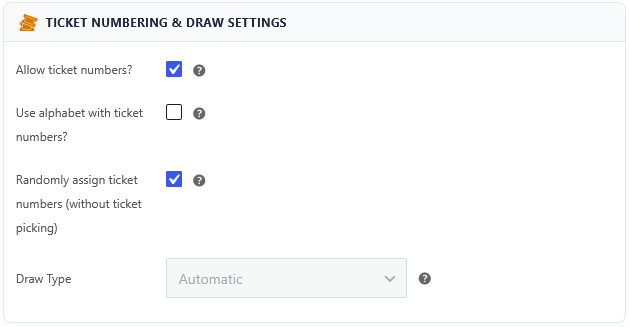
- Check Use pick numbers (
_lottery_use_pick_numbers) to activate numerical ticket pools. - Leave Randomly pick numbers (
_lottery_pick_numbers_random) UNCHECKED. When unchecked, the plugin renders the interactive visual grid instead of bypassing it for automatic random assignment. - Save or update the competition product.
Grid Layout & Tabbed Navigation
Section titled “Grid Layout & Tabbed Navigation”For competitions with hundreds or thousands of tickets, loading every number into a single flat grid can impact page performance and mobile usability. Quantum Competitions provides built-in batching options:
Tabbed Batches (_lottery_pick_number_use_tabs)
Section titled “Tabbed Batches (_lottery_pick_number_use_tabs)”- Use tabs for ticket numbers: Splits the total ticket pool into organized tabbed containers (e.g.
1–100,101–200,201–300). - Tickets per tab (
_lottery_pick_number_tab_qty): Defines the quantity of tickets displayed per tab (default:100). - Customers can click tab buttons to quickly jump between number blocks without endless vertical scrolling.
Alphanumeric & Custom Ranges
Section titled “Alphanumeric & Custom Ranges”- Use alphabet for ticket numbers (
_lottery_pick_number_alphabet): Transforms numeric tickets into letters and numbers (e.g.,A1throughZ26). - Use ranges for ticket numbers (
_lottery_pick_number_use_ranges): Configures custom starting offsets and optional ticket prefixes.
Ticket Visual States & Classes
Section titled “Ticket Visual States & Classes”Every ticket pill rendered in the grid (<li class="tn ...">) dynamically reflects its real-time status:
| Visual State | CSS Class | Tooltip / Description | Behavior |
|---|---|---|---|
| Available | .tn |
Default | Clickable. Clicking adds the ticket to the current selection. |
| Selected | .tn.active |
Selected | Highlighted in primary theme color, queued for add-to-cart. |
| In Cart | .tn.in_cart |
Already in your cart! | Currently held in the buyer’s own cart session. |
| Reserved | .tn.reserved |
Reserved! | Temporarily locked in another customer’s active checkout session. |
| Sold / Taken | .tn.taken |
Sold! | Permanently purchased and locked out from future selection. |
Cart Reservation & Anti-Collision Locks
Section titled “Cart Reservation & Anti-Collision Locks”To eliminate double-booking race conditions when multiple customers attempt to purchase the same lucky number simultaneously, Quantum Competitions provides a database-driven session reservation engine.
How Reservation Works
Section titled “How Reservation Works”- When a customer adds ticket
#42to their cart, a lock record is inserted into the dedicated MySQL table{$wpdb->prefix}wc_lottery_pn_reserved(QCW_PN_RESERVED_TABLE). - The record logs the competition ID, ticket number, customer
session_key, and timestamp. - For all other visitors, ticket
#42instantly becomes unselectable with the.reservedstate. - When the order is completed, the reserved entry is converted into a permanent log entry (
wc_lottery_pn_log) and cleared from the reservation table. - If the cart is emptied or checkout is abandoned, the reservation lock is automatically removed, returning the number to Available.
Global Reservation Settings
Section titled “Global Reservation Settings”Configure cart reservation behavior under Competitions > Settings > Tickets & Entries:
- Reserve ticket number when user puts it in cart (
qcw_answers_reserved): Enable or disable the reservation lock mechanism. - Hold reserve tickets for n minutes (
qcw_answers_reserved_minutes): The duration (in minutes) tickets remain locked in a customer’s cart before expiring (default:5minutes). - Show notice for reserving tickets (
qcw_answers_reserved_notice): Displays a countdown or informative notice during checkout informing the customer of their hold window.
Integrated Helper Features
Section titled “Integrated Helper Features”- Lucky Dip Integration: Enable Show lucky dip button (
qcw_use_lucky_dip) in settings to render a quick-select button above the grid. Customers who do not wish to pick manually can click Lucky Dip to auto-select random available tickets. - Question & Answers Validation: When skill questions (
_lottery_use_answers) are enforced, customers must select an answer before adding their chosen grid tickets to the cart.