
Creating Competitions
Quantum Competitions registers a dedicated WooCommerce product type called Competition (internally handled as lottery). When creating or editing a competition, all core rules, prize tiers, ticket parameters, and skill tests are configured through modular cards in the Product Data panel.
The 5 Core Product Data Cards
Section titled “The 5 Core Product Data Cards”When you open Competitions > Add New, the Product Data box displays five modular sections:
1. Ticket Limits, Pricing & Schedule
Section titled “1. Ticket Limits, Pricing & Schedule”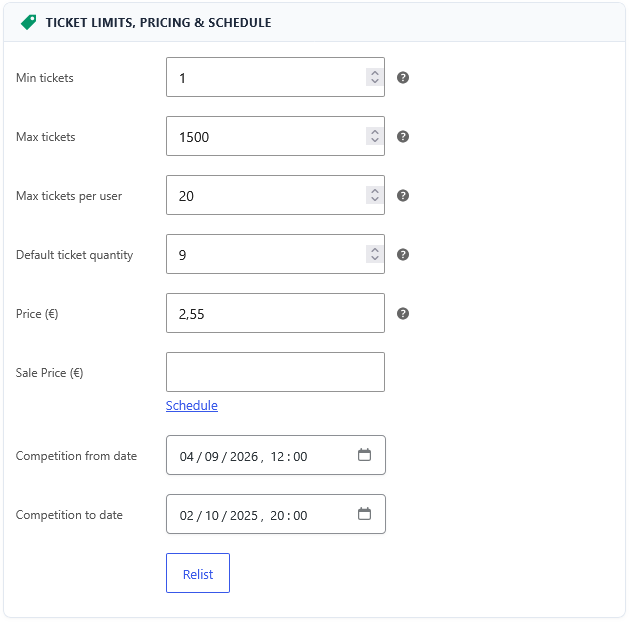
Controls ticket inventory, pricing, and active duration:
- Min tickets: The minimum ticket threshold required for a valid draw. If this minimum is not met before the end date, the competition fails (triggering refund or auto-extension).
- Max tickets: Total ticket capacity available for purchase.
- Max tickets per user: Purchase limit per customer account to prevent hoarding and ensure fair distribution.
- Default ticket quantity: Default number of tickets pre-selected in the frontend quantity input or range slider for this competition. Leave empty to inherit the global setting configured in Competitions > Settings > Display (defaults to
1or the minimum purchase quantity). - Price (€): Standard entry price per ticket. Set to
0for free promotional draws. - Sale Price (€): Optional discounted ticket price with scheduling support.
- Competition from / to date: Exact launch and closing date/time pickers.
2. Competition Winners & Prizes
Section titled “2. Competition Winners & Prizes”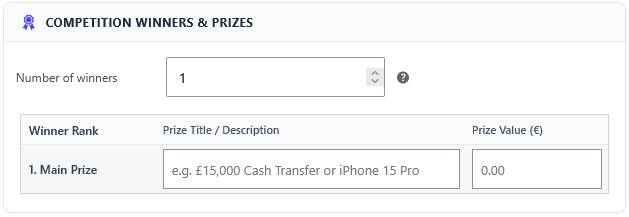
Manages multi-tier prize structures and runner-up allocations:
- Number of winners: Configure 1 for standard single-winner draws, or multiple (e.g., 2, 5, 10) for tiered runner-up prizes.
- Multiple prizes per user: Toggle whether a single entrant holding multiple tickets can win more than one prize rank.
- Prize Ranks Table:
- Rank: Dynamic prize label (1. Main Prize, 2. Winner, 3. Winner, etc.).
- Prize Title / Description: Bespoke title for each prize tier (e.g., DJI Inspire 3 Cinema Drone, Zenmuse X9-8K Combo).
- Prize Value (€): Cash value of each prize, used in frontend badges and marketing summaries.
3. Ticket Numbering & Draw Settings
Section titled “3. Ticket Numbering & Draw Settings”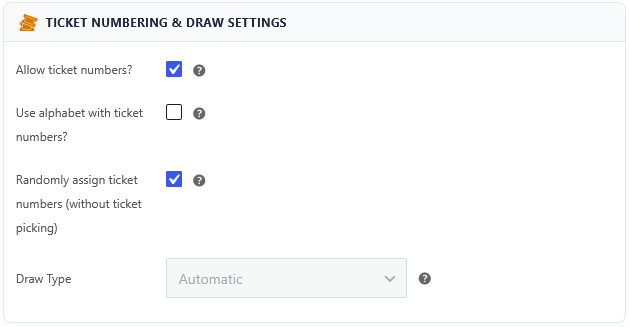
Defines how tickets are numbered and which winner determination mode is used:
- Allow ticket numbers: Enables individual numbered ticket tracking. (Must be enabled for the manual ticket picker and instant wins).
- Use alphabet with ticket numbers: Switches numeric tickets (e.g.
1–1000) into alphanumeric format (e.g.A1–Z50). - Randomly assign ticket numbers (without ticket picking): When checked, customers cannot manually pick specific numbers from a grid; tickets are allocated automatically at checkout (Lucky Dip / Auto-allocate mode).
- Draw Type: Choose between:
- Automatic: Drawn by cron/engine immediately upon closure.
- Manual: Ticket sales close; admin enters results from an external physical draw.
- Live: Interactive animated Live Draw Console for streaming on Facebook, YouTube, or stage events.
4. Instant Win Prizes
Section titled “4. Instant Win Prizes”
Enables on-the-spot prizes awarded at the exact moment of ticket purchase:
- Instant winner: Check this box to unlock the instant prizes table.
- When enabled, you can designate specific ticket numbers that automatically win instant cash, vouchers, or physical merchandise before the main draw occurs.
5. Competition Question & Answers
Section titled “5. Competition Question & Answers”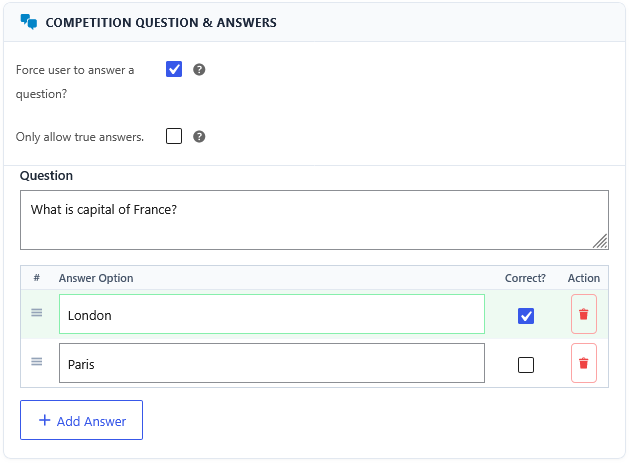
Provides legal compliance by requiring entrants to pass a skill, judgment, or knowledge test:
- Force user to answer a question: Check to require an answer selection before adding tickets to cart.
- Only allow true answers: When unchecked (recommended for strict UK/EU compliance), buyers can purchase with wrong answers, but their tickets are disqualified and excluded from the final winner draw pool.
- Question: The skill test prompt (e.g., What is the capital of France?).
- Answer Options Table:
- Add multiple-choice options (Paris, London, Rome).
- Check the Correct? radio button for the single true answer.
- Drag-and-drop handles (
≡) allow quick reordering of answers. - Trash icon (
🗑) deletes an option. - + Add Answer: Inserts new answer rows dynamically.
Publishing the Competition
Section titled “Publishing the Competition”Once all cards are configured:
- Set the Featured Image (this will be the primary prize photo displayed in catalogs, timers, and social cards).
- Assign relevant Product Categories (e.g. Electronics, Drones, Cars).
- Click Publish. The competition is immediately live or scheduled according to your configured start date.