
OBS Stream Overlay
Quantum Competitions includes a real-time live streaming overlay engine designed for OBS Studio, Streamlabs, and vMix. It broadcasts dynamic ticket counters, glowing progress bars, and instant win celebration alerts directly onto your live video feed.
How the Overlay Architecture Works
Section titled “How the Overlay Architecture Works”Rather than requiring high-frequency local polling that slows down your WordPress hosting, Quantum Competitions connects to a cloud overlay server at wpgenie.org:
- Your site establishes a secure connection with a unique Stream Key (
wpos_...) and API secret. - Whenever a customer purchases tickets (
qcw_participate_added) or hits an instant win (qcw_instant_won), your site dispatches an instant webhook event. - The OBS Browser Source receives the event over WebSockets in milliseconds, updating numbers and triggering animations without page refreshes.
Setting Up the OBS Browser Source
Section titled “Setting Up the OBS Browser Source”- Navigate to Competitions > Settings > Stream Overlay.
- Locate the OBS Browser Source URL in the top hero bar:
https://wpgenie.org/competition-overlay/wpos_your_unique_stream_key
- Click Copy URL.
- In OBS Studio:
- Under Sources, click
+and choose Browser. - Name the source (e.g.
Quantum Live Overlay). - Paste the copied URL.
- Set width to
1920and height to1080(or1080x1920for vertical TikTok/Instagram Live streams). - Check Shutdown source when not visible and Refresh browser when scene becomes active.
- Under Sources, click
Admin Action Controls
Section titled “Admin Action Controls”The Stream Overlay dashboard provides built-in testing, stream key management, and a live preview sidebar:
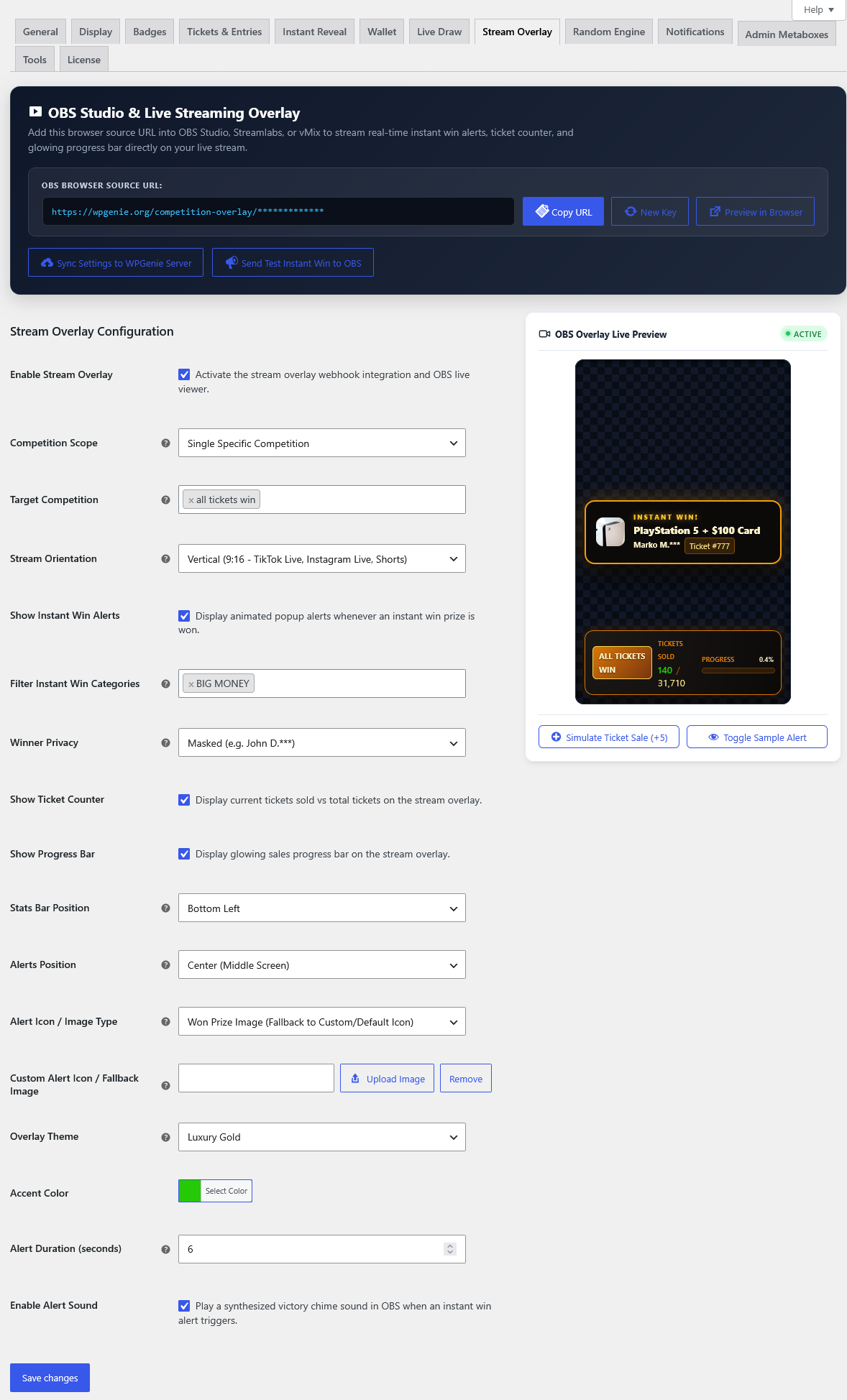
- Copy URL: Copies the unique browser source URL directly to your clipboard.
- New Key: Regenerates a fresh stream key and private API secret if your previous key is compromised.
- Preview in Browser: Launches the overlay in a new browser tab to inspect visual scaling and styling.
- Sync Settings to WPGenie Server: Pushes updated colors, orientations, and competition scopes to the server immediately.
- Send Test Instant Win to OBS: Dispatches a simulated winning alert in real time, allowing you to test on-screen positioning and audio volume before going live.
Configuration & Customization Options
Section titled “Configuration & Customization Options”Under Competitions > Settings > Stream Overlay, configure:
Display Scope & Targeting
Section titled “Display Scope & Targeting”- Overlay Scope:
All Active Competitions: Aggregates ticket activity or cycles through active drops.Single Competition: Locks the overlay onto one specific competition ID.Selected Competitions: Restricts overlay data to designated competition categories.
Layout & Orientation
Section titled “Layout & Orientation”- Orientation:
Horizontal: Sleek bottom/top third ticker bar for widescreen 16:9 streaming.Vertical: Sidebar widget optimized for 9:16 vertical streaming (TikTok, YouTube Shorts, Instagram Live).
- Positioning: Configurable screen anchors for the stats widget (
top-left,bottom-left, etc.) and alert banner (bottom-right,top-right).
Privacy & Alerts
Section titled “Privacy & Alerts”- Winner Privacy:
Masked: Displays privacy-safe customer names (e.g.Sarah M.).Full Name: Displays full customer name.
- Instant Win Popups:
- Displays prize thumbnail image or trophy icon.
- Configurable alert duration (e.g.
6seconds). - Audio chime toggle for viewer engagement.
Stats & Styling
Section titled “Stats & Styling”- Counter Format: Choose between
Sold / Total(e.g.,450 / 1000) orRemainingtickets countdown. - Glowing Progress Bar: Animated fill bar reflecting live sellout percentage.
- Theme & Accent Color: Choose
DarkorLightmodes and set your brand accent color using the color picker.