
Base Pages & URL Routing
Quantum Competitions relies on three core WordPress pages to structure your competition catalog, customize single competition URLs, and display historical draw outcomes.
Navigate to Competitions > Settings > General to configure your base pages:
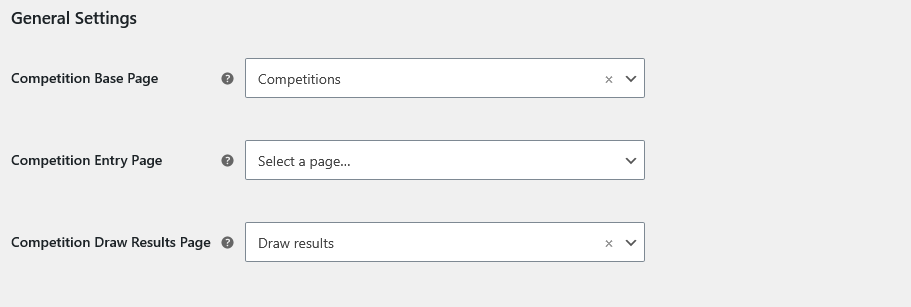
1. Competition Base Page
Section titled “1. Competition Base Page”The Competition Base Page (qcw_page_id) serves as the central storefront and catalog archive for all active competitions, analogous to the standard WooCommerce /shop/ page.
Core Functions & Query Interception
Section titled “Core Functions & Query Interception”- Query Takeover: When visitors land on this page, Quantum Competitions automatically intercepts the main WordPress query (
$wp_query), setting:post_type = 'product'is_archive = trueis_post_type_archive = truecompetition_archive = true
- Shop Separation: By default, WooCommerce mixes regular physical/digital products and competitions in the standard
/shop/catalog. In Competitions > Settings > General, enable Do not mix competition and regular products on shop page (qcw_dont_mix_shop) to isolate regular products on/shop/and competitions exclusively on your Base Page (e.g.,/competitions/). - Breadcrumbs & SEO: Breadcrumbs automatically use the Base Page title and permalink as the parent crumb for single competition products. Yoast SEO and RankMath meta descriptions assigned to the Base Page are automatically preserved.
- Homepage Integration: You can assign the Base Page as your front page under WordPress Settings > Reading (
show_on_front = page). The plugin detectsCOMPETITIONS_IS_ON_FRONTand handles root pagination without 404 errors.
2. Competition Entry Page
Section titled “2. Competition Entry Page”The Competition Entry Page (qcw_entry_page_id) enables custom URL routing for single competition product pages, replacing the default WooCommerce /product/ permalink structure with a branded entry path.
Custom Rewrite Engine
Section titled “Custom Rewrite Engine”When an Entry Page is selected (for example, a WordPress page with the slug enter or play), Quantum Competitions automatically registers custom rewrite rules:
^enter/([^/]*)/?$ -> index.php?pagename=enter&competition_entry=true&competition_single_entry=$matches[1]^enter/([^/]*)/page/([0-9]{1,})/?$ -> index.php?pagename=enter&competition_entry=true&competition_single_entry=$matches[1]&paged=$matches[2]Key Behaviors
Section titled “Key Behaviors”- Branded Permalinks: Single competition links generated across the storefront (
post_type_link) are filtered to route through the entry structure:- Default WooCommerce:
https://yourstore.com/product/aston-martin-vantage/ - With Entry Page:
https://yourstore.com/enter/aston-martin-vantage/
- Default WooCommerce:
- Future Competition Filtering: Prevents visitors from accessing upcoming or scheduled competitions until their official launch date/time is reached.
- Automatic Rule Flushing: Updating this page in plugin settings sets the internal flag
qcw_flush_rewrite_rules, automatically regenerating WordPress permalinks without requiring manual .htaccess edits.
3. Competition Draw Results Page
Section titled “3. Competition Draw Results Page”The Competition Draw Results Page (qcw_draw_results_page_id) is the public audit trail and winners archive for all closed or drawn competitions.
Automatic Shortcode Rendering
Section titled “Automatic Shortcode Rendering”The plugin hooks into the template output filter (filter_draw_results_page_content):
- When visitors view the configured Draw Results page, the plugin checks if the content already contains
[competition_draw_results]or[competitions_draw_results]. - If neither shortcode is found, it automatically appends
do_shortcode( '[competition_draw_results]' )to the page content. - Renders a searchable, paginated table displaying:
- Competition Title & Thumbnail
- Winning Ticket Number(s)
- Winner Name / Masked Username
- Official Draw Date & Time
- Direct links to live draw recordings or random engine certificates
Configuration Checklist
Section titled “Configuration Checklist”To set up base pages on a fresh installation:
- Go to Pages > Add New in WordPress and publish three empty pages:
- Competitions (slug:
competitions) - Enter (slug:
enterorplay) - Draw Results (slug:
draw-results)
- Competitions (slug:
- Navigate to Competitions > Settings > General:
- Set Competition Base Page to
Competitions. - Set Competition Entry Page to
Enter(or leave empty if you prefer/product/permalinks). - Set Competition Draw Results Page to
Draw Results.
- Set Competition Base Page to
- Click Save changes.