Non-paying auction winners are one of the biggest challenges in managing online auctions. This tutorial explains how WooCommerce Simple Auctions helps prevent non-paying bidders, and what options sellers have when a winning bidder doesn’t complete payment.
If you run WooCommerce auctions, you’ve probably encountered this kind of problem:
“At least once a week I get someone who wins a bid and then doesn’t pay. I just had a buyer who outbid someone else respond to the message by asking me questions about what item they won. They are literally acting like they don’t know what they bid on. I just don’t understand!”
Or as another seller put it:
“I’m so sick of people winning auctions and then just never paying! How do I avoid this?”
Online auctions are a great way to engage customers, create urgency, and drive higher prices through competitive bidding, but almost every seller has experienced the downside: buyers who win auctions but fail to complete payment.
Why does this happen? It could be buyer’s remorse, impulse bidding, automated bots, or even kids bidding for fun through a parent’s account. Whatever the reason, non-paying auction winners are a huge problem for many sellers.
This is why more and more sellers go with the buy-it-now option. It’s a safer alternative, but unfortunately, it’s also less profitable, since auction items typically sell for more than buy-it-now items. Not to mention that buy-it-now never reaches the same level of excitement and engagement that auctions offer.
In this tutorial, we will cover options that WooCommerce Simple Auctions plugin offers to help sellers prevent unreliable bidders from participating in auctions. We will also explain what to do when an auction ends and the winner doesn’t pay for the won item.
Table of Contents
Prevent Unpaid Auctions
The most effective way to prevent unreliable bidders is to verify their payment method before they can place any bid. This ensures that only users with a valid, working payment method can participate in your auctions.
With WooCommerce Simple Auctions, you can do this in two ways: you can require users to add a payment method to their account before bidding (built into Simple Auctions v3.0, works only with Stripe payment gateway), or you can require users to make an actual payment before they can participate in any auction (available through Simple Auctions addons, works with any payment gateway).
Require Users to Provide a Payment Method Before Bidding
Starting with Simple Auctions v3.0 we added a new option in the auction settings: Do not allow bidding without Credit Card on file.
If you’re using the Stripe Payment Gateway, you can set the plugin to only allow bids from users who have a valid credit card saved to their account.
This immediately reduces the number of bidders who are not truly interested in the auction; anyone willing to save a card has at least some real intent. It also sets up everything needed for the next feature: automatic charging when the auction ends.
Automatically Charge the Winning Bidder’s Credit Card
Starting with Simple Auction v3.0 we also implemented this great feature: Automatically charge for won auction.
This option also works only with Stripe Payment Gateway. When this option is enabled, the winner’s credit card will be automatically charged at the end of the auction.
You can see how this works in this video:
Important: Both features are available from Simple Auctions v3.0 and require the free WooCommerce Stripe Payment Gateway plugin.
Require Users to Make a Payment Before Bidding
If you’re not using Stripe Payment Gateway, WPGenie offers three add-ons to WooCommerce Simple Auctions, and each can help solve the problem of non-paying winners. These addons require users to make a payment before they can participate in any auction, which both verifies that their payment method works and filters out anyone not serious about bidding.
Role Based Bidding and Payment Verification Addon
With Role Based Bidding add-on, bidders need to purchase a specific product and get their role changed to one that can place bids (for example, you can define virtual product called “Become Bidder” and set the price at $1).
This purchase confirms their payment method is valid, and their account role is automatically changed to the one that’s allowed to bid, and from that point they can participate in auctions.
Role Based Bidding add-on is also useful for running members-only auctions, where bidding is restricted to a specific group of registered members.
Buy Bid Credits Addon
With Buy Bid Credits addon, only users who have purchased bid credits can place bids. Bid credit packages are sold as regular WooCommerce products, and users spend credits whenever they place a bid.
Since users must buy credits before bidding, their payment method is automatically verified.
Buy Bid Credits add-on is also used to build penny auction websites.

Seated Auctions Addon

With Seated Auctions add-on, you require users to purchase a “seat” before they’re allowed to bid on a specific auction. This again serves as payment verification and filters out unserious bidders.
You can define a simple product to use as a “seat” and define its price, and you can also limit number of seats available, controlling attendance and bidder quality (for example, if you want to run limited-entry auctions for specific high-end items).
Manage Unpaid WooCommerce Auctions
What are your options if an auction ends, and the winner doesn’t pay? Simple Auctions offers a few build-in features for this kind of situation.
Payment Reminders to Winners
E-mail notifications
When an auction ends, the winner automatically receives an email notification with a payment link.
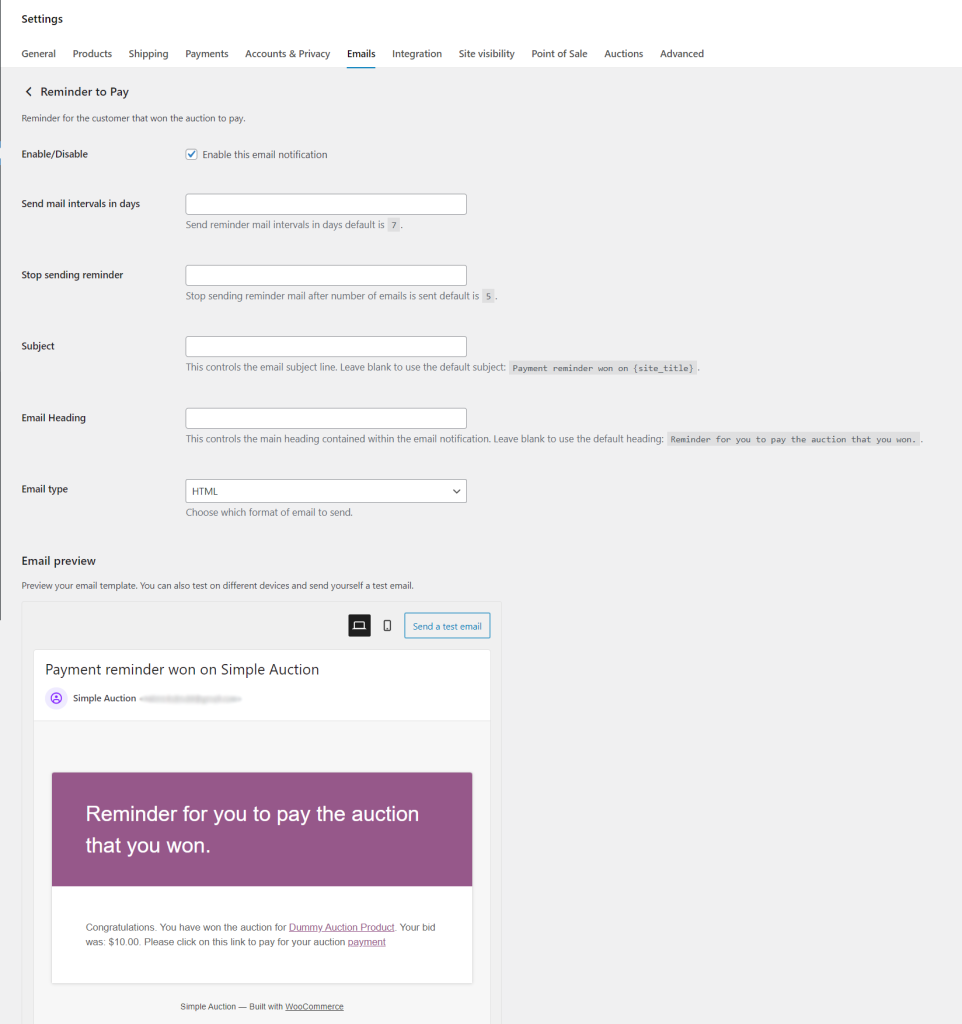
If the winner doesn’t pay, Simple Auctions can automatically send payment reminder emails. You control how often these reminders go out (default is every 7 days) and how many reminders to send before stopping.
SMS notifications
If email isn’t getting through, Simple Auctions supports SMS notifications via a third-party plugin. This gives you an additional channel to reach winners who haven’t responded to email reminders.
Move the Win to the Next Highest Bidder
If a winner doesn’t pay, you can manually delete their winning bid (you need to do this in the Auction History tab of the auction product).
The next highest bidder will then become the winner. This means an unpaid auction doesn’t have to be immediately relisted. In many cases, the second bidder is still interested and happy to complete the purchase.
Important: You need to manually contact the next highest bidder and send them auction URL where they can see “Pay Now” button so that new winner can complete payment.
Relisting Unpaid Auction
If the winner doesn’t pay, Simple Auctions has options to manually or automatically relist unpaid auctions.
Automatically Relist Unpaid Auctions
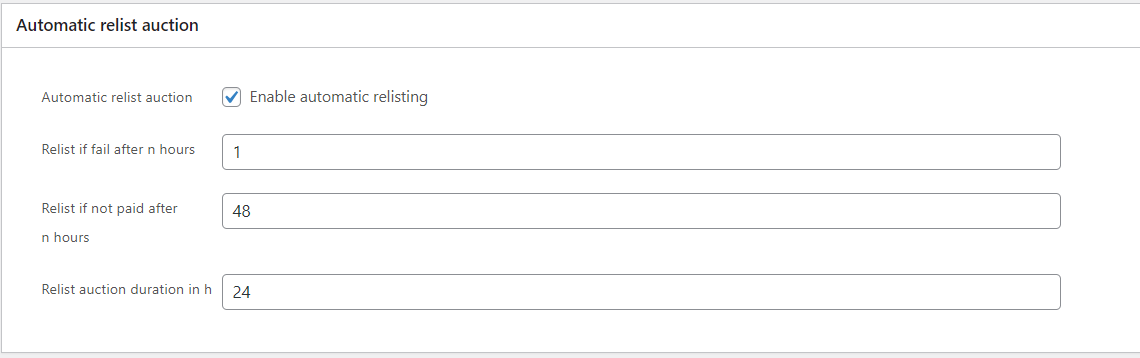
You can set the plugin to automatically relist any auction where the winner hasn’t paid within a set number of hours. Once that time passes, the auction goes back up.
This option is available on product edit page:
Manually Relist Unpaid Auction
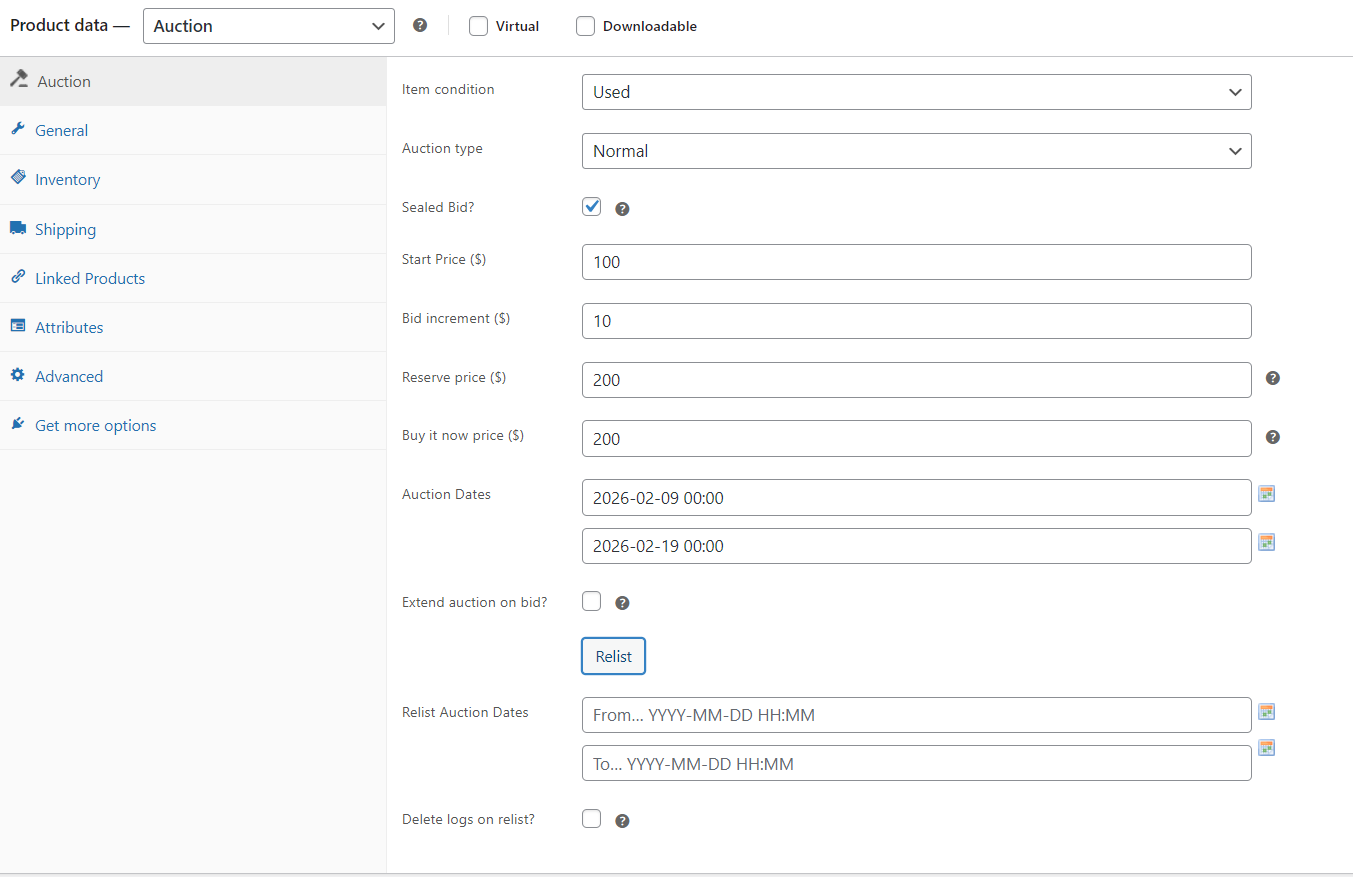
If you don’t want to use automatic relist option, once an auction ends without payment, an option for manual relisting will show on product edit page.
You need to set a new duration (start/end dates). There’s also an option to “delete logs on relist”, which removes all previous bids/logs (can’t be undone!).
Conclusion
Unpaid auction winners are (unfortunately) a common problem for sellers, but with the right strategies, you can minimize their impact and keep your auctions running. By requiring bidders to verify their payment method, using automatic charging with Stripe, or implementing payment verification addons, you ensure that only serious buyers participate.
Even if a winner doesn’t pay, WooCommerce Simple Auctions provides you with options to manage the situation: send payment reminders via email or SMS, assign the win to the next highest bidder, or relist the auction automatically or manually. Using these tools together helps protect your revenue, and keep your auctions profitable.
With the WooCommerce Simple Auctions plugin, all you need to do is decide which options are best for your store.
Looking for other ways to improve your WooCommerce store? Check the complete list of our plugins that can help you bring your clients the best online shopping experience!