
Adding a YouTube video to your WooCommerce product pages can significantly boost engagement, improve conversion rates, and help customers better understand your product, ultimately reducing costly returns.
There are several dedicated plugins that let you add YouTube videos to your product pages. But if you want to avoid adding one more plugin to your WordPress site (and that means: another plugin to keep updated, extra scripts loading on every page, worrying if developers will maintain it), here’s another solution: use our code snippet and add it to your child theme.
What this code does:
- Adds a Custom Meta Box for YouTube Video ID
- Saves the YouTube video ID when the product is saved
- Hooks the YouTube video into the product summary, just below the price
We created this for ourselves and are happy to share it 😉
Table of Contents
Why Add YouTube Videos to Product Pages?
- Better product understanding: Customers see the product in action.
- Higher conversion rates: Video increases trust and purchase intent.
- Lower return rates: Buyers know exactly what they’re getting.
- Improved SEO: Video content can increase time-on-page and ranking signals.
- Lighter server load: Videos stream from YouTube, not your own hosting.
Before You Start: Set Up a Child Theme
This code belongs in a child theme, not your main (parent) theme. A child theme inherits everything from the parent but keeps your custom code separate, so theme updates won’t wipe it.
You need:
- A base (parent) theme like Storefront (or Avada, Divi, or any WooCommerce-compatible theme works)
- A new folder at /wp-content/themes/mycustomtheme/ with its own style.css and functions.php
Check our article: Using code snippets and template customizations in child theme
Step 2: Paste the Snippet
Add this at the very bottom of the file, after the last line, and then update file.
/**
 * Simple Add YouTube Video to WooCommerce Product
 * https://wpgenie.org
 * this code snippet goes to themes\child-theme\functions.php
*/


add_action( 'add_meta_boxes', 'add_wc_youtube_video_meta_box' );
function add_wc_youtube_video_meta_box() {
    add_meta_box(
        'wc_youtube_product_video',
        __( 'Product YouTube Video', 'woocommerce' ),
        'render_wc_youtube_video_meta_box',
        'product',
        'side', // Places it in the sidebar near the Product Gallery
        'low'
    );
}


function render_wc_youtube_video_meta_box( $post ) {

    $video_id = get_post_meta( $post->ID, '_product_youtube_id', true );
    wp_nonce_field( 'save_wc_youtube_video_meta', 'wc_youtube_video_nonce' );

    echo '<p><label for="product_youtube_id"><strong>' . __( 'YouTube Video ID:', 'woocommerce' ) . '</strong></label></p>';
    echo '<input type="text" id="product_youtube_id" name="product_youtube_id" value="' . esc_attr( $video_id ) . '" style="width:100%; padding: 6px;" placeholder="e.g., dQw4w9WgXcQ" />';
    echo '<p class="description">' . __( 'Paste only the 11-character video ID (the part after "v=" in the URL).', 'woocommerce' ) . '</p>';
}


add_action( 'woocommerce_process_product_meta', 'save_wc_youtube_video_meta' );
function save_wc_youtube_video_meta( $post_id ) {

    if ( ! isset( $_POST['wc_youtube_video_nonce'] ) || ! wp_verify_nonce( $_POST['wc_youtube_video_nonce'], 'save_wc_youtube_video_meta' ) ) {
        return;
    }

    if ( isset( $_POST['product_youtube_id'] ) ) {
        $video_id = sanitize_text_field( $_POST['product_youtube_id'] );
        update_post_meta( $post_id, '_product_youtube_id', $video_id );
    }
}

/**
 * Hook: woocommerce_single_product_summary.
 *
 * @hooked woocommerce_template_single_title - 5
 * @hooked woocommerce_template_single_rating - 10
 * @hooked woocommerce_template_single_price - 10
 * @hooked woocommerce_template_single_excerpt - 20
 * @hooked woocommerce_template_single_add_to_cart - 30
 * @hooked woocommerce_template_single_meta - 40
 * @hooked woocommerce_template_single_sharing - 50
 * @hooked WC_Structured_Data::generate_product_data() - 60
 */

add_action( 'woocommerce_single_product_summary', 'display_youtube_video_above_gallery', 15 );
function display_youtube_video_above_gallery() {

    global $product;

    if ( ! $product ) {
        return;
    }


    $video_id = get_post_meta( $product->get_id(), '_product_youtube_id', true );


    if ( ! empty( $video_id ) ) {
        ?>
        <div class="wc-product-youtube-video-wrapper" style="margin-bottom: 20px; width: 100%; clear: both;">
            <div class="video-container" style="position: relative; padding-bottom: 56.25%; height: 0; overflow: hidden; max-width: 100%; border-radius: 4px; box-shadow: 0 2px 5px rgba(0,0,0,0.1);">
                <iframe
                    src="https://www.youtube.com/embed/<?php echo esc_attr( $video_id ); ?>?rel=0"
                    style="position: absolute; top: 0; left: 0; width: 100%; height: 100%;"
                    frameborder="0"
                    allow="accelerometer; autoplay; clipboard-write; encrypted-media; gyroscope; picture-in-picture"
                    allowfullscreen>
                </iframe>
            </div>
        </div>
        <?php
    }
}
Note: You can also grab this snippet from our Pastebin, where we share all our code snippets: WPGenie on Pastebin.
Step 3: Add a Video to a Product
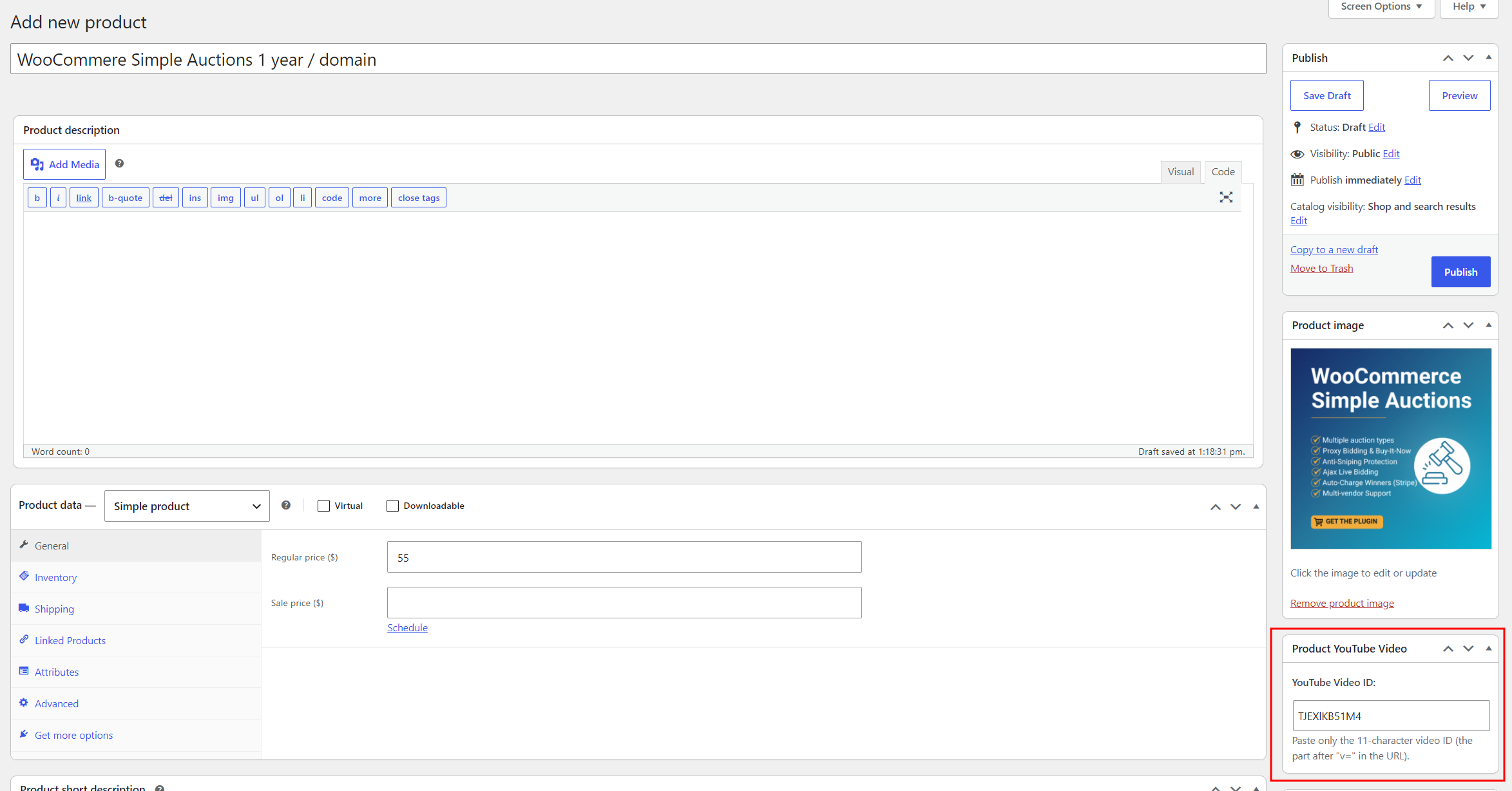
The snippet adds a new box to your product editor. Go to Products > All Products and open any product. In the right sidebar, near the Product Gallery, you’ll see a box called Product YouTube Video.
Paste only the video ID, not the full URL. The ID is the 11 characters after v= in a YouTube link. For example, in https://www.youtube.com/watch?v=TJEXlKB51M4 the ID is TJEXlKB51M4.
Drop that into the field and click Update.
Step 4: Check the Product Page
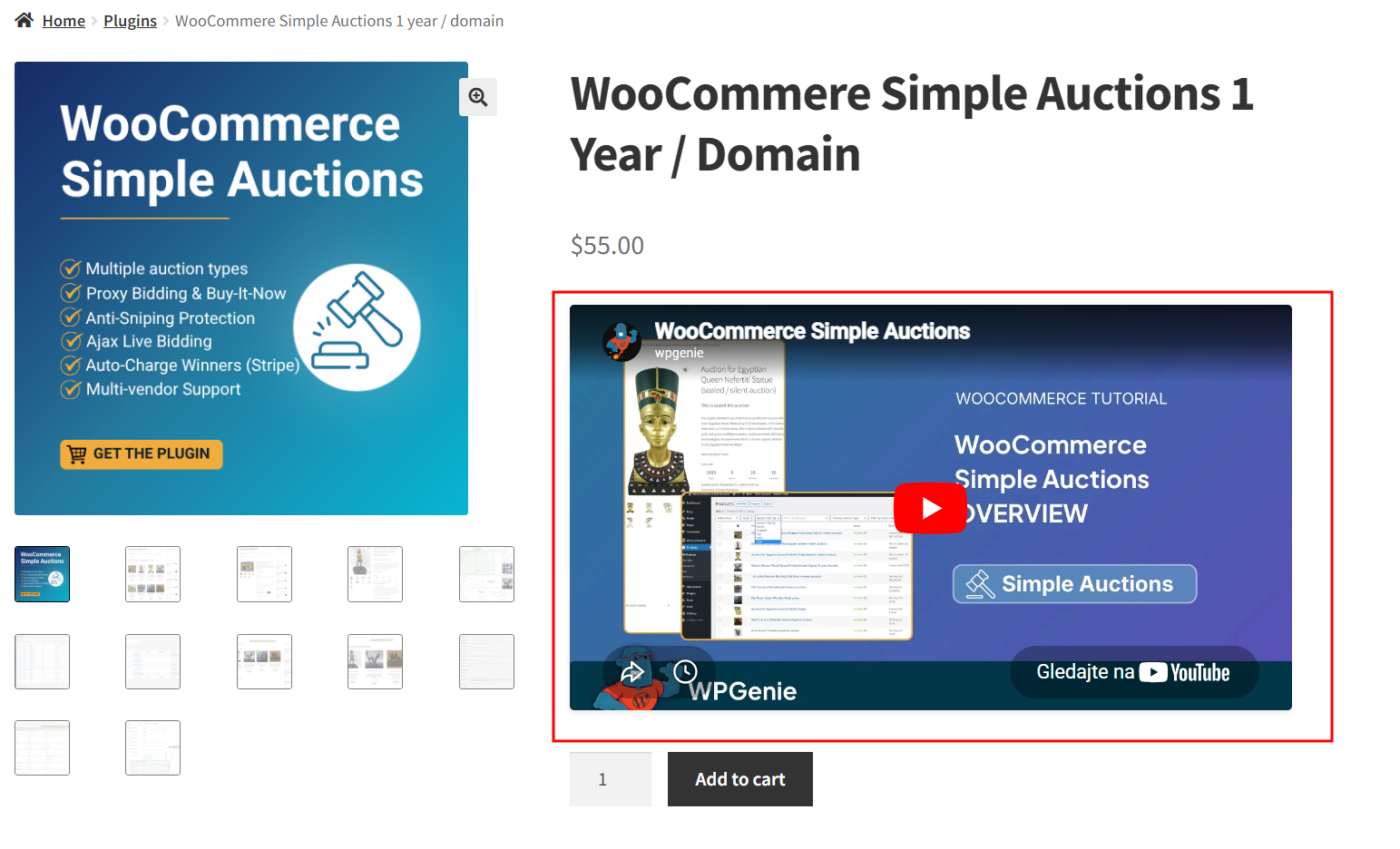
Open the product on your store. The video appears in the product summary, just below the price and above the short description.
Repeat Step 3 for any other product you want a video on.
Looking for other ways to improve your WooCommerce store? Check the complete list of our plugins that can help you bring your clients the best online shopping experience!