
Creating a Lot
An Auction Lot is a sale container. Its child products are the individual items customers bid on. In this plugin, the word lot refers to that container, rather than just one item in an auction catalog.
Create the container
Section titled “Create the container”- Open Auctions → Add New Lot.
- Enter the sale title, description, images, and gallery.
- In Lot Details, enter a Lot ID if needed for your catalog.
- Select Parallel Mode or Sequential Mode.
- Choose whether the sale Has Sessions?.
- Configure the dates or session schedule.
- Set Order Creation Mode and the extension options.
- Add or assign the auction products in Lot Products.
- Add Viewing Days if customers may inspect the items before the sale.
- Save, then check the customer-facing lot page.
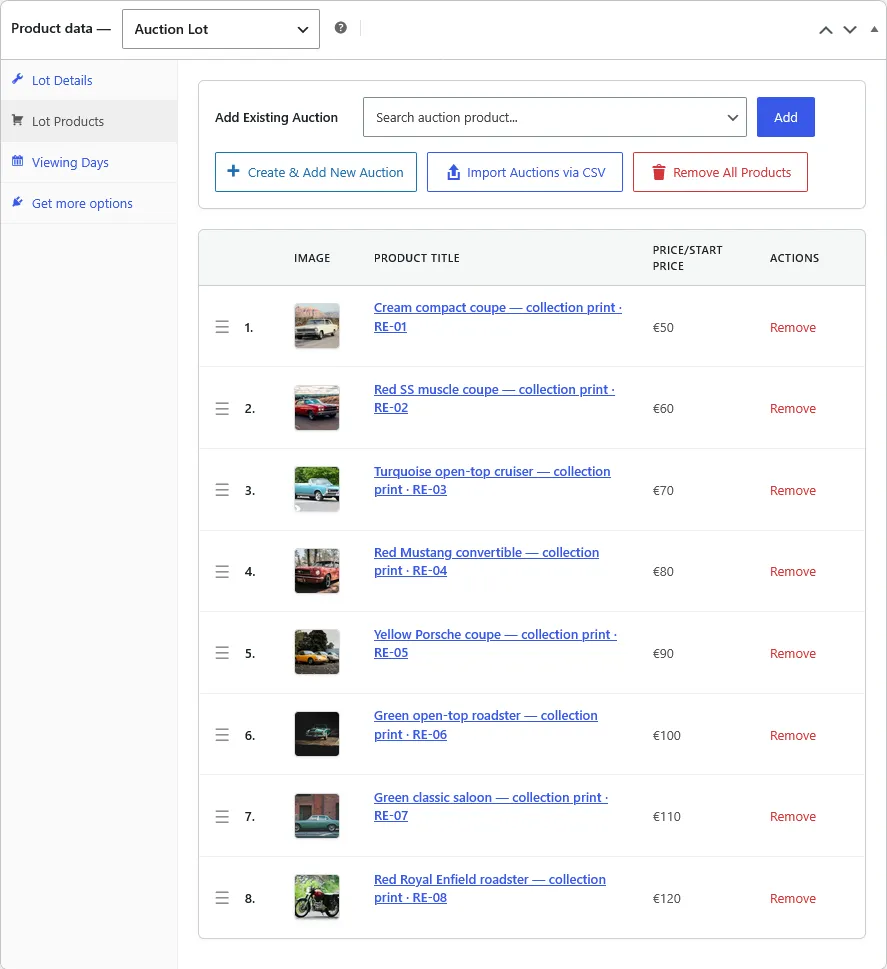
Lot Products controls for adding existing auctions, creating items, importing CSV, and arranging the catalog.
Timing ownership
Section titled “Timing ownership”The lot’s timing settings take precedence over dates and extensions on its individual auctions. You can also assign an existing auction using its Auction Lot selector.
Choose the sale format
Section titled “Choose the sale format”| Format | Suitable for |
|---|---|
| Parallel | Multiple auction items open for bidding together. |
| Sequential | One active item at a time, with timed or staff-controlled advancement. |
| Sessions | Groups of item positions offered at different scheduled times. |
Check the final item order before defining session ranges. Item positions determine which products belong to each session.
Screen example
Section titled “Screen example”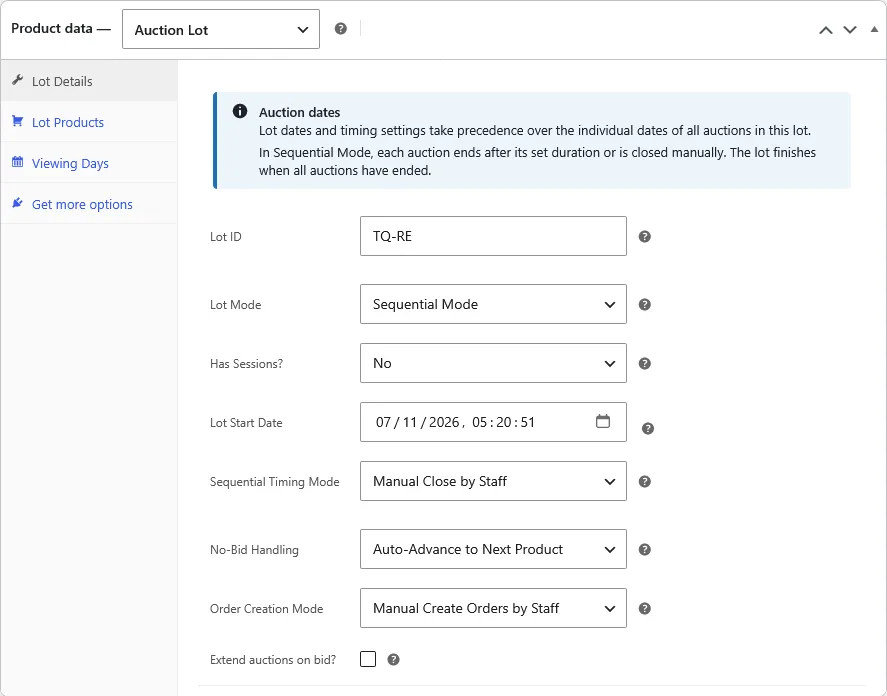
Sequential lot with manual closing, automatic advancement for items without bids, and manual order creation. User-supplied screenshot. Example values are not recommended defaults.
Customer view
Section titled “Customer view”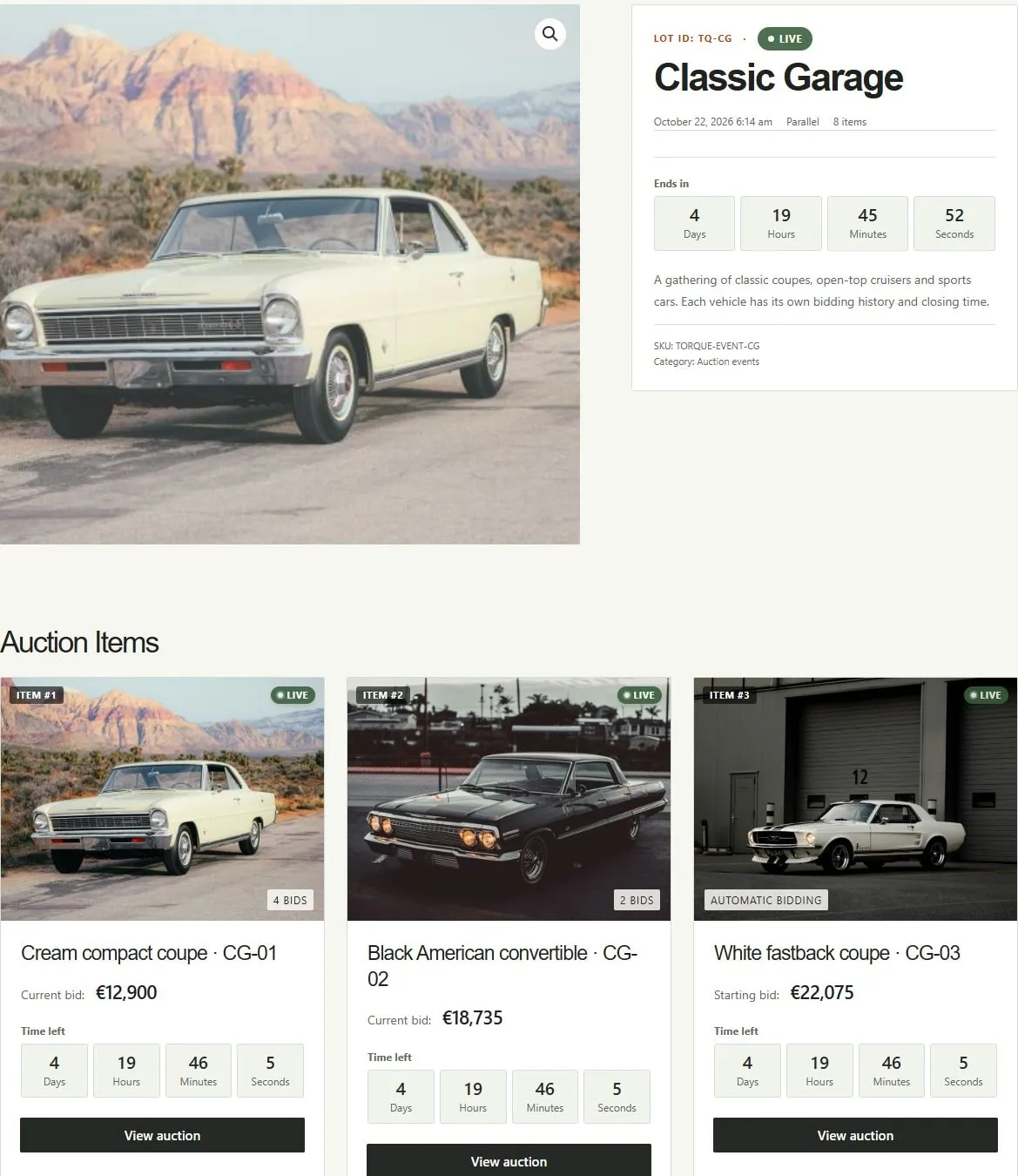
Classic Garage demo lot with shared countdown and auction item cards. Listings, prices, bids, and schedules are fictional demonstration data.