
Badges, Countdown & Live Updates
Screens below include Torque Auctions demo settings and user-provided screenshots identified in their captions. Select values appropriate to your store.
Bidding information
Section titled “Bidding information”Auctions → Settings → General → Bidding information is enabled by default. On auction product pages, it explains standard, reverse, automatic, or sealed bidding, the applicable bid increment, and configured soft-close rules. Closed auctions do not display this panel.
For normal proxy auctions, customers enter their maximum; for reverse proxy auctions, they enter their minimum offer. Sealed auctions show a privacy explanation and omit the public bid-step detail. The panel does not expose competing sealed bids or private proxy limits.
If the panel is missing, check the setting and whether the theme or builder renders the standard WooCommerce single-product summary hooks. The override template is single-product/auction-bidding-information.php; see Template Overrides.
Badges
Section titled “Badges”Open Auctions → Settings → Badges. The settings cover auction and lot badges, winning/outbid badges, status badges, and additional bid/type indicators.
Configure enabled states, text, colors, positions, and optional images. Review the preview and then check a real product card and product page at desktop and mobile widths.
Auction type and bid count
Section titled “Auction type and bid count”Auction Type Badge and Bid Count Badge each have an Enable Badge control, enabled by default, and their own position settings.
- Auction Type Badge identifies seated, sealed, reverse, or automatic bidding on auction cards. Show Standard Auction Type also displays a type badge for standard auctions; this option is disabled by default.
- Bid Count Badge displays the number of bids. It is hidden when the count is zero and for sealed auctions. Live bid updates can reveal it once the count becomes positive on a non-sealed auction.
- Use icons replaces type and bid-count labels with icons while keeping bid numbers visible. It is disabled by default.
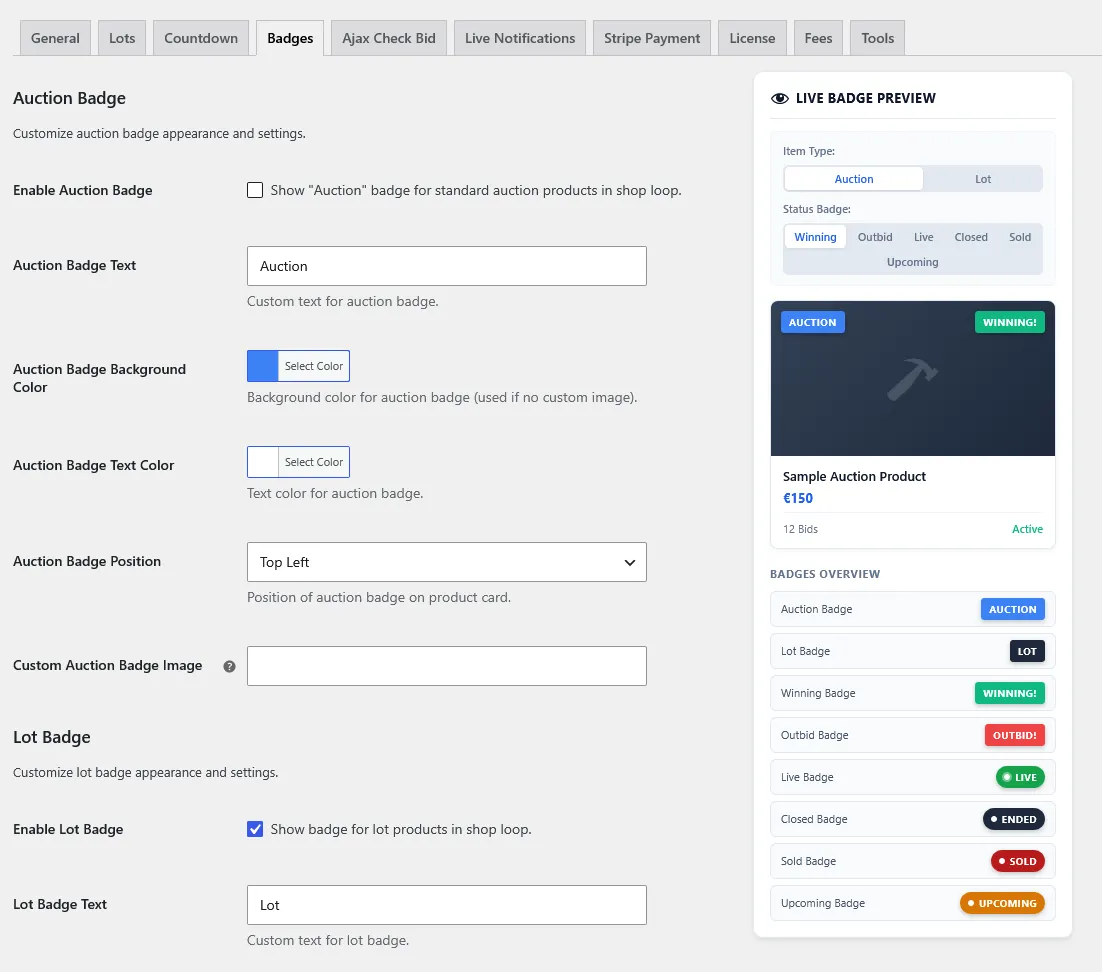
User-provided screenshot received on 2026-11-03 showing auction and lot badge controls, the live preview, and the badges overview. The source site and saved state were not independently verified; preview values do not confirm storefront behavior.
Countdown
Section titled “Countdown”Open Auctions → Settings → Countdown to configure timer presentation on product pages, product cards, and widgets that render the plugin countdown.
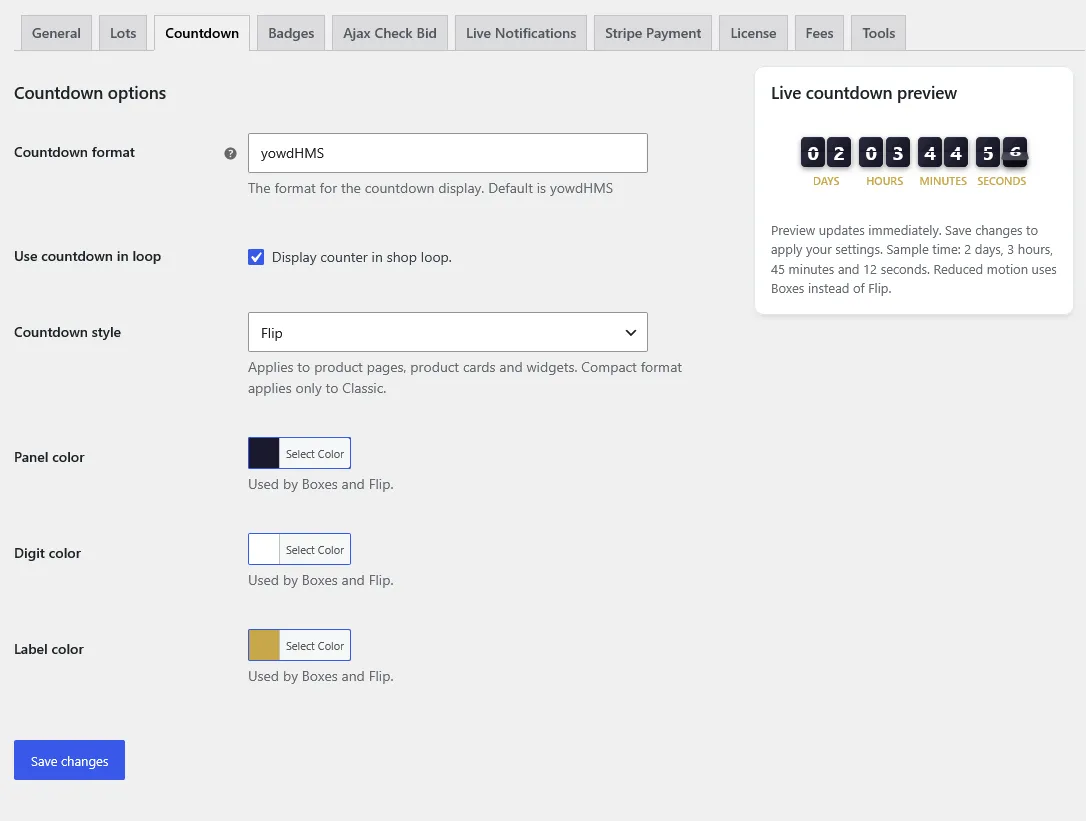
User-provided screenshot received on 2026-11-03 showing Flip and the live preview. The source site and saved state were not independently verified. The timer is a sample, not a live auction.
Options
Section titled “Options”| Option | Behavior |
|---|---|
| Countdown format | Selects the time units to display. Default: yowdHMS. See Format characters. |
| Use compact countdown | Uses a shorter text layout for Classic only. This checkbox is hidden when Boxes or Flip is selected. Disabled by default. |
| Use countdown in loop | Adds the counter to product listings using the standard WooCommerce shop-loop hooks. Disabled by default; the screenshot shows it enabled. |
| Countdown style | Classic is the default text-and-label layout. Boxes places values in colored panels. Flip animates individual digits. |
| Panel color | Background of Boxes and Flip panels. Default: #1a1a2e. |
| Digit color | Numbers in Boxes and Flip. Default: #ffffff. |
| Label color | Time-unit labels in Boxes and Flip. Default: #c8a84b. |
Color controls appear for Boxes and Flip. They do not apply to Classic. Choose colors with readable contrast and check the countdown on narrow product cards as well as full product pages.
Format characters
Section titled “Format characters”Enter characters in the order below. Uppercase makes a unit mandatory, including when its value is zero. Lowercase makes it optional: it appears when non-zero; once an optional unit appears, the following selected units also appear.
| Character | Unit |
|---|---|
Y / y |
Years |
O / o |
Months |
W / w |
Weeks |
D / d |
Days |
H / h |
Hours |
M / m |
Minutes |
S / s |
Seconds |
For example, yowdHMS makes years, months, weeks, and days optional while always displaying hours, minutes, and seconds. Use DHMS to always display days, hours, minutes, and seconds, or HMS for hours, minutes, and seconds. Months use O; minutes use M.
Preview and saving
Section titled “Preview and saving”The Live countdown preview updates as you change the format, style, compact option, or colors. It starts with a sample duration of 2 days, 3 hours, 45 minutes, and 12 seconds and counts down independently of product data. Use countdown in loop controls storefront placement; the preview remains visible regardless of that checkbox.
Click Save changes to apply the settings to the storefront. When the browser requests reduced motion, Flip renders as Boxes. Boxes is also the fallback if the Flip library is unavailable. Flip includes a text equivalent for screen readers; time-unit labels use the plugin translations.
Auction timing
Section titled “Auction timing”These settings change presentation. Scheduled auctions can show Starting in before opening and Time left while running. Duration after first bid follows its own deadline and first-bid rules. Manual sequential lots show status labels instead of a timed closing counter; paused lots show Paused.
A countdown communicates the current schedule; server-side auction state and closing tasks determine completion. Changing its format or style does not change auction dates or late-bid extension rules.
AJAX bidding and refresh
Section titled “AJAX bidding and refresh”Enable AJAX bidding controls asynchronous bid submissions. The Ajax Check Bid tab controls periodic bid checks. Submitting a bid and polling for another customer’s bid are separate actions.
If a refresh is delayed, check the request result and retry message before submitting again. Avoid excessively frequent checks on large auction catalogs.
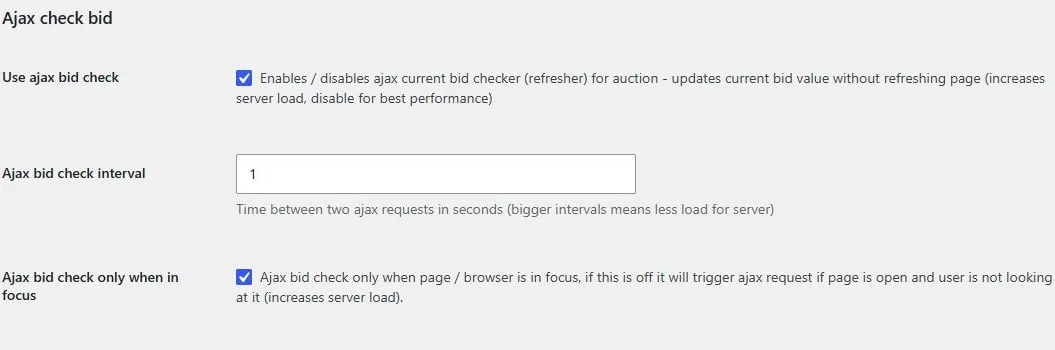
Periodic bid checks, refresh interval in seconds, and browser-focus restriction.
Live notifications
Section titled “Live notifications”The Live Notifications tab controls events, position, theme, and sound. It can also allow customers to choose all auctions, only participating auctions, or no notifications from their account settings.
Browsers may require a customer interaction before playing audio. Test notifications with two customer accounts and an auction where bids are permitted.
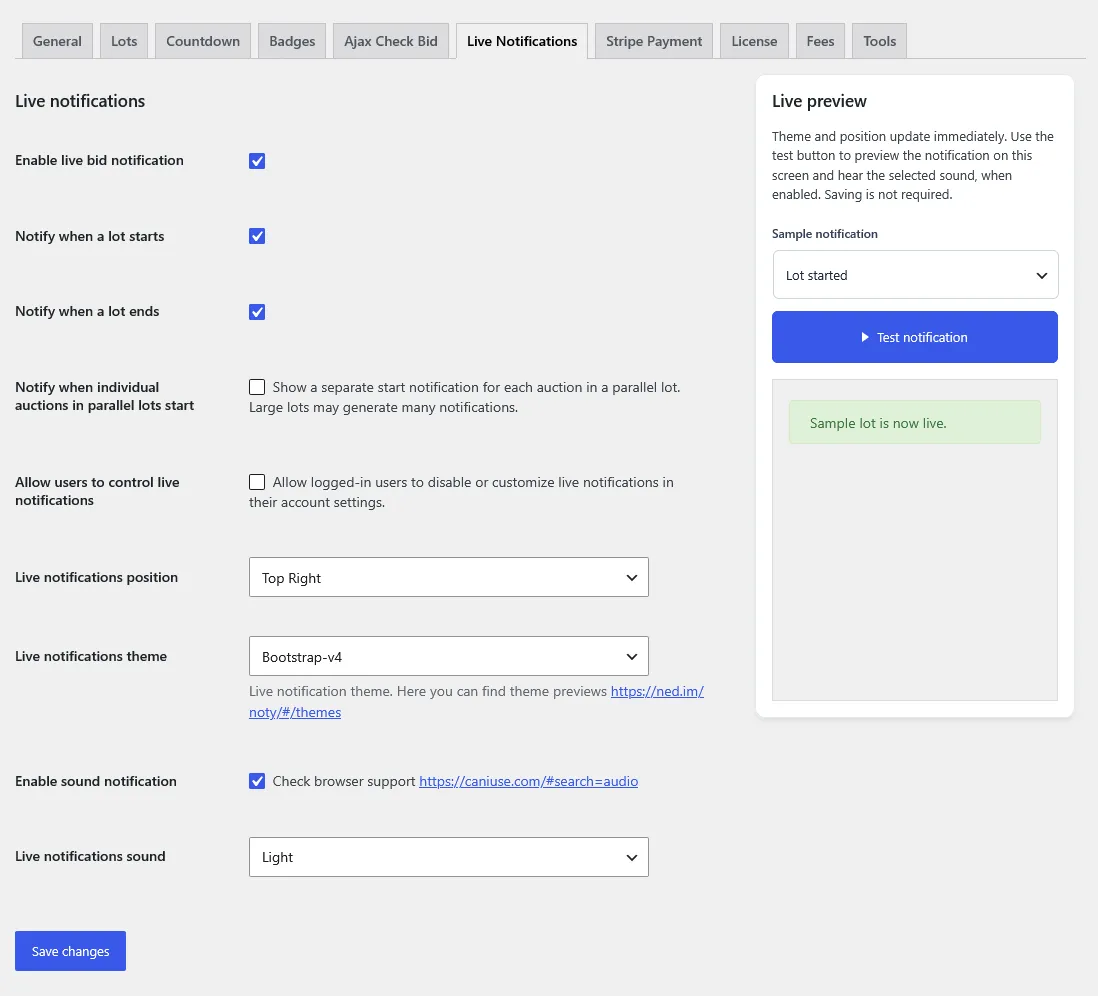
User-supplied screenshot showing notification settings and a sample Lot started preview.